Apple Private Relay, a.k.a. VPN!

Is Apple Private Relay Making the Internet Harder to Use?
For the last couple of years, we have been chasing an increasingly frustrating problem. Clients are unexpectedly denied access to websites, repeatedly asked to prove they are human, or occasionally told they are accessing something from outside the United States when they are sitting right here in the US. I have personally experienced the same problems across my Apple devices, and until now, these incidents seemed unrelated.
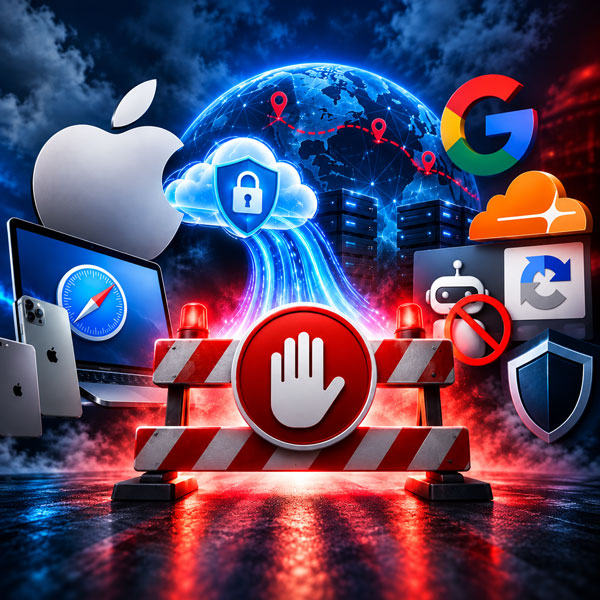 This week, while troubleshooting another one of these problems, we discovered something that surprised us: Apple has essentially built VPN style IP masking directly into normal Safari browsing through a feature called Private Relay.
Private Relay has actually been around since 2021, so this isn’t a new Apple feature. What surprised us was how quietly it can operate in the background. You don’t have to install a VPN application, connect to a VPN service, or intentionally decide to browse through a VPN. If you have iCloud+ and Private Relay enabled, Safari can already be using a different IP address when you browse the Internet.
Technically, Private Relay isn’t a traditional full device VPN, but for the problem we’re discussing, the distinction doesn’t matter much. Like a VPN, Private Relay hides the normal public IP address provided by your Internet company and substitutes another IP address before Safari connects to a website.
And that is where we found the problem.
What We Found
I was sitting in Arkansas using Brightspeed Internet. With Private Relay enabled, Safari wasn’t presenting my normal Brightspeed IP address to the website. Instead, it was using a relay address belonging to Fastly. One service identified that address as being in Alabama, while the current geolocation database protecting the website identified the exact same address as being in Sweden.
We updated the database and checked again. It still said Sweden.
Then I opened Chrome on the exact same Mac, using the exact same Brightspeed connection. Chrome presented my normal Brightspeed IP address and correctly placed the connection in Arkansas.
So from the perspective of websites and security systems, Safari and Chrome on the same computer could look like two very different Internet connections. Chrome looked like me sitting in Arkansas on Brightspeed. Safari looked like a connection coming through a relay network, and one current security database thought that relay was in Sweden.

That’s important because the Internet has become increasingly suspicious of VPNs, proxies, data centers and relay networks. Services such as Cloudflare, Google reCAPTCHA, hosting security, geographic restrictions, fraud prevention and other human verification systems routinely evaluate this information when deciding whether to trust a connection.
Private Relay isn’t new. What has changed is the Internet around it. As more websites and security services scrutinize or restrict VPN, proxy and relay traffic, ordinary Safari users can increasingly encounter the same problems traditionally associated with VPN users without realizing they are browsing through a relay in the first place.
This doesn’t mean Private Relay is responsible for every access problem we’ve seen. But after reproducing the behavior ourselves, it has moved very near the top of our troubleshooting list when an Apple user has unexplained problems accessing something through Safari.
What We’re Doing
ILGM is turning Private Relay off on our local Apple devices.
Private Relay provides additional browsing privacy by preventing websites from seeing your normal public IP address. Turning it off does not turn off your firewall, HTTPS encryption, iCloud, passwords, bookmarks, Safari synchronization or the normal integration between your Apple devices. It simply means Safari will once again present the public Internet address from your normal Internet connection, much as Chrome already does.
We’re not suggesting that everyone on the Internet needs to disable a privacy feature. We’re going to run without Private Relay ourselves and see whether the unexplained location errors, human verification loops and access problems we’ve experienced decrease. For our clients who use Safari and have been experiencing similar problems, however, Private Relay is now one of the first things we recommend checking.
How to Check Private Relay
On a Mac, open System Settings → your name → iCloud → Private Relay.
On an iPhone or iPad, open Settings → your name → iCloud → Private Relay.
You can check whether Private Relay is enabled without changing anything. If you choose to turn it off, Apple provides options to disable it temporarily or completely.
We’re going to spend some time using our Apple devices without Private Relay and see what changes. We’ll follow up with what we find.
For those interested in the technical side, we’ve also prepared a white paper explaining how Apple’s Private Relay works, what we documented during our testing, and why the growing Internet crackdown on VPN and proxy traffic can create problems for ordinary Safari users.