
How to Use the Social Link Preview Tool
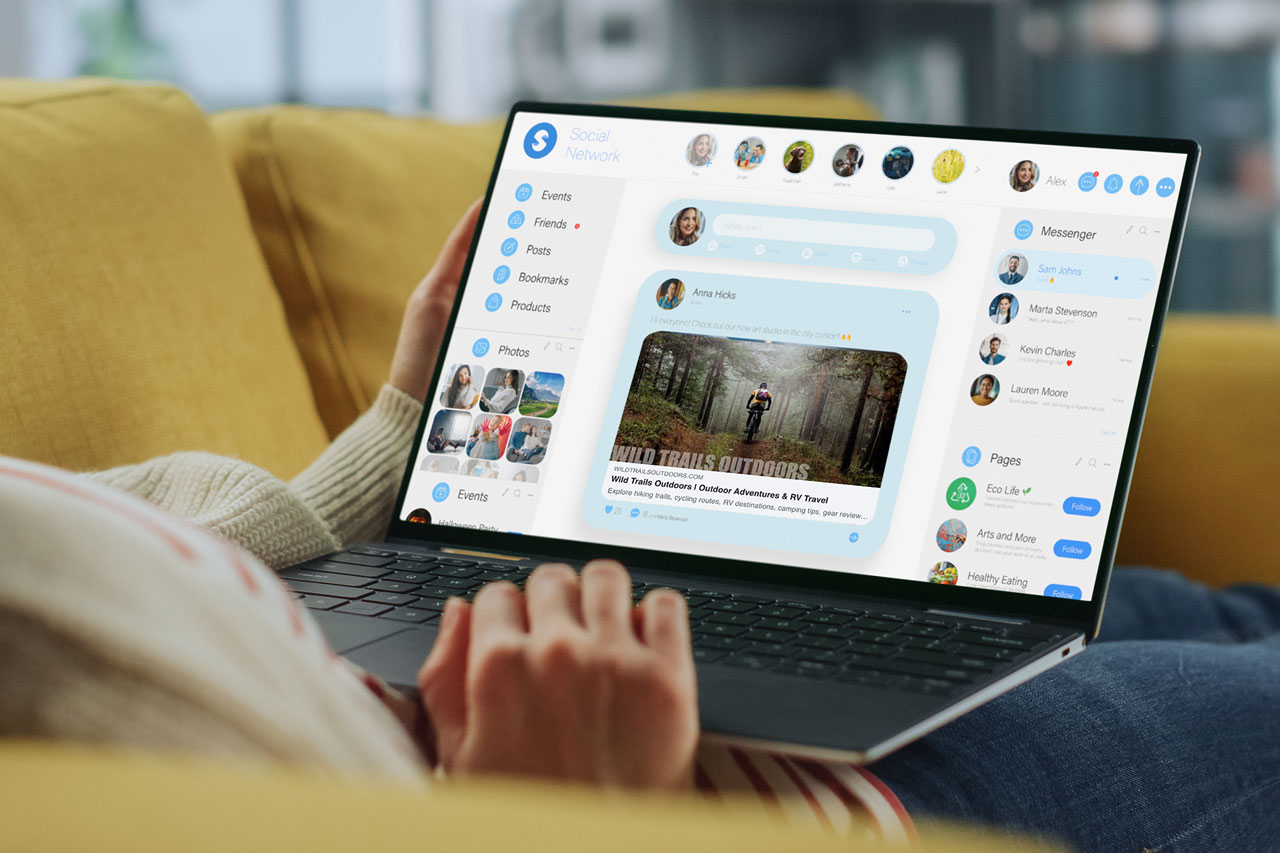
When someone shares your website on Facebook, LinkedIn, Apple Messages, Messenger, WhatsApp, or other social platforms, those services create a preview of your page. Search engines such as Google and Bing do something similar when displaying your content in search results. The challenge is that the automatically generated title, image, and description are not always the best representation of your content.
Access: Dashboard > Page or Post or Product > SEO & Social Preview (Widget)
The Social Link Preview tool was created to give website owners direct control over how their content appears both on social media and in search engines. Instead of relying on automatically generated information, you can customize exactly what visitors see before they ever click your link.
The Social Link Preview panel is available on Pages, Posts, and WooCommerce Products. Simply edit the content you want to customize and scroll below the content editor until you see the Social Link Preview section.
Social Sharing Controls
The first section focuses on social media and messaging platforms. These settings control how your content appears when a link is shared on Facebook, LinkedIn, X, Apple Messages, Messenger, WhatsApp, and many other services that support Open Graph data.
The Social Image field allows you to upload a dedicated image specifically for social sharing. For the best appearance across platforms, we recommend using an image that is 1200 × 630 pixels. If no image is selected, the plugin will automatically use the page’s featured image.
The Social Title field gives you the ability to create a custom headline for social media. This can often be shorter and more engaging than the page title itself, helping attract attention when someone sees the shared link.
The Social Description field allows you to create a brief summary that appears beneath the title. Since most social platforms only display a limited amount of text, a concise description often performs better than using longer page content.

Together, these settings help ensure your links look professional and consistent regardless of where they are shared.
Search Engine Controls
The second section focuses on search engine optimization. These settings help search engines better understand your content and can influence how your pages appear in search results.
The SEO Title field creates a custom title tag for the page. This is often the headline users see when your page appears in Google or Bing search results. A clear and descriptive title can improve visibility and encourage more clicks.
The SEO Meta Description field allows you to provide a dedicated summary of the page. While search engines sometimes generate their own descriptions, providing a well-written meta description gives them additional context and often results in a more accurate search listing.
If either SEO field is left blank, WordPress will continue using the page title and page content as it normally would.
Better Control, Better First Impressions
Whether someone discovers your website through a search engine or a social media share, the preview they see is often their first impression of your content. The Social Link Preview tool makes it easy to control that experience by providing dedicated settings for both social sharing and search engine metadata.
With just a few extra minutes spent customizing these fields, you can create more professional previews, improve consistency across platforms, and give visitors a clearer reason to click through to your website.